TUI
Master the Arctic terminal user interface.
The Arctic TUI (Terminal User Interface) is the primary way to interact with models. It’s keyboard‑first and fast.
Launch
arcticLayout
- Input (bottom): type prompts
- Messages (center): conversation history
- Sidebar (right): session info, navigation
- Footer (bottom): status + hints
Input
EntersubmitsCtrl+Jinserts a newlineUp/Downcycles prompt history
Ctrl+C behavior
Ctrl+C is context‑aware:
- If there is selected text, it copies the selection.
- If there is input text, it clears the input.
- If pressed twice quickly, it exits the CLI.
Keybindings
Arctic uses a leader key system for many shortcuts. The default leader key is Ctrl+X. In the table below, this is represented as Ctrl+X.
General
| Action | Shortcut | Description |
|---|---|---|
| Quit | Ctrl+C, Ctrl+D, Ctrl+X q | Exit the application |
| Command Palette | Ctrl+P | List available commands |
| Suspend | Ctrl+Z | Suspend terminal |
| Allow All Permissions | Alt+Shift+P | Toggle auto-allow all permissions mode |
Navigation & View
| Action | Shortcut | Description |
|---|---|---|
| Toggle Sidebar | Ctrl+X b | Toggle sidebar visibility |
| Toggle Scrollbar | Ctrl+X v | Toggle session scrollbar |
| Status View | Ctrl+X s | View status |
| Themes | Ctrl+X t | List available themes |
| Toggle Thinking | Ctrl+X i | Toggle thinking display |
| Toggle Conceal | Ctrl+X h | Toggle code block concealment |
Session Management
| Action | Shortcut | Description |
|---|---|---|
| New Session | Ctrl+X n | Create a new session |
| List Sessions | Ctrl+X l | List all sessions |
| Timeline | Ctrl+X g | Show session timeline |
| Compact Session | Ctrl+X c | Compact the session context |
| Export Session | Ctrl+X x | Export session to editor |
| Interrupt | Esc | Interrupt current generation |
| Next Child Session | Ctrl+X Right | Cycle to next child session |
| Prev Child Session | Ctrl+X Left | Cycle to previous child session |
Models & Agents
| Action | Shortcut | Description |
|---|---|---|
| List Models | Ctrl+X m | List available models |
| Next Recent Model | F2 | Cycle to next recently used model |
| Prev Recent Model | Shift+F2 | Cycle to previous recently used model |
| List Agents | Ctrl+X a | List agents |
| Next Agent | Tab | Switch to next agent |
| Prev Agent | Shift+Tab | Switch to previous agent |
Messages & Scrolling
| Action | Shortcut | Description |
|---|---|---|
| Undo Message | Ctrl+X u | Undo last message/generation |
| Redo Message | Ctrl+X r | Redo message |
| Copy Message | Ctrl+X y | Copy focused message |
| Copy Selection | Super+C / Ctrl+Shift+C | Copy selected text |
| Page Up | PageUp | Scroll messages up by one page |
| Page Down | PageDown | Scroll messages down by one page |
| Half Page Up | Ctrl+Alt+U | Scroll messages up by half page |
| Half Page Down | Ctrl+Alt+D | Scroll messages down by half page |
| First Message | Ctrl+G, Home | Navigate to first message |
| Last Message | Ctrl+Alt+G, End | Navigate to last message |
Input Editor
| Action | Shortcut | Description |
|---|---|---|
| Submit | Return | Submit input |
| Newline | Ctrl+J | Insert newline |
| Clear Input | Ctrl+C | Clear input field |
| Paste | Ctrl+V | Paste from clipboard |
| Open External Editor | Ctrl+X e | Edit input in external editor |
| Move Cursor | Arrows | Standard navigation |
| Line Start/End | Ctrl+A, Ctrl+E | Move to start/end of line |
| Word Move | Alt+F, Alt+B | Move forward/backward by word |
| History Prev/Next | Up, Down | Cycle input history |
Sessions
- Start a new session:
Ctrl+X N - Switch sessions:
Ctrl+X L - Timeline view:
Ctrl+X G
Models and agents
- Pick a model:
Ctrl+X M - Pick an agent:
Ctrl+X A
Both dialogs support search and quick filter.
Tools and streaming
As responses stream you’ll see tool usage (bash/read/edit/etc.) inline with the message output.
Copy & selection
- Mouse select to copy
- Keyboard select with
Shift+ arrows - Copy entire message:
Ctrl+X Y
Dialogs
Model picker
Search and select models with details like provider and context size.
Agent picker
Select or create agents. Shows description, mode, and model override.
Session list
Browse sessions, view last updated time, and delete sessions.
Command palette
Search and run actions quickly.
Theme picker
Pick a theme or load one from config.
Stats dialog
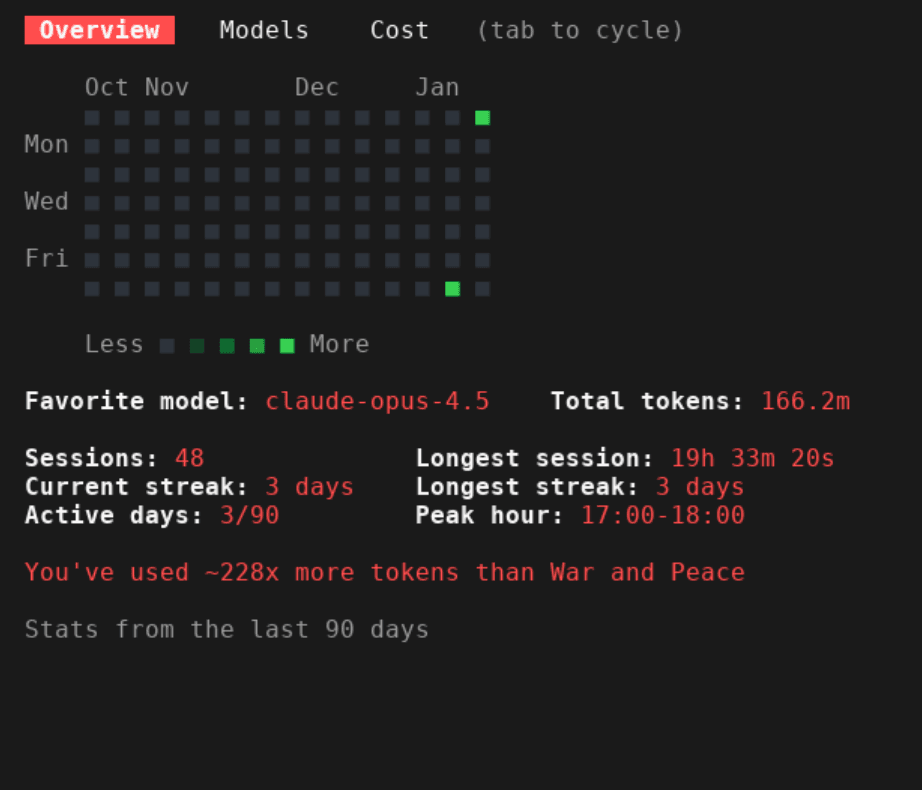
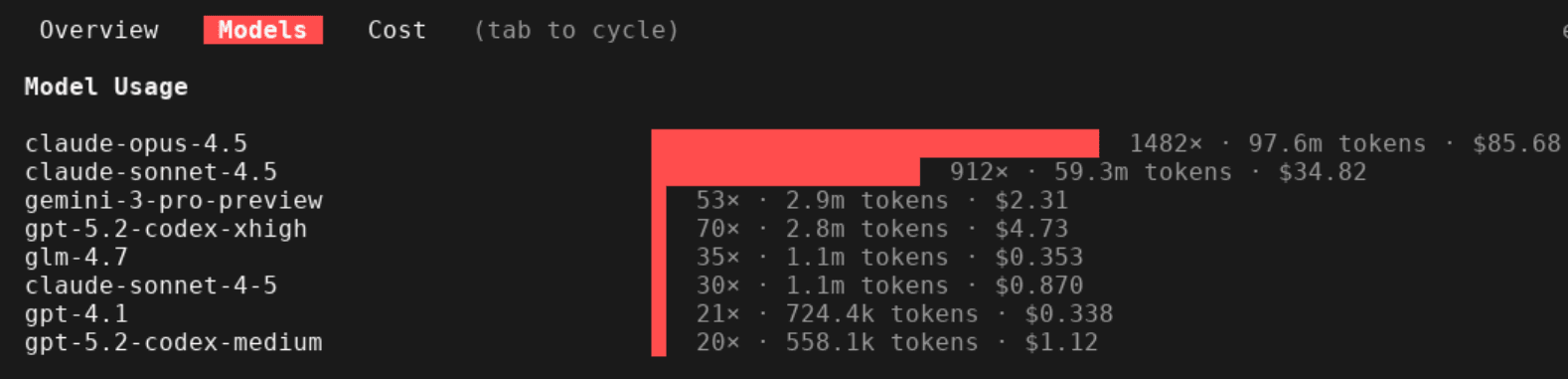
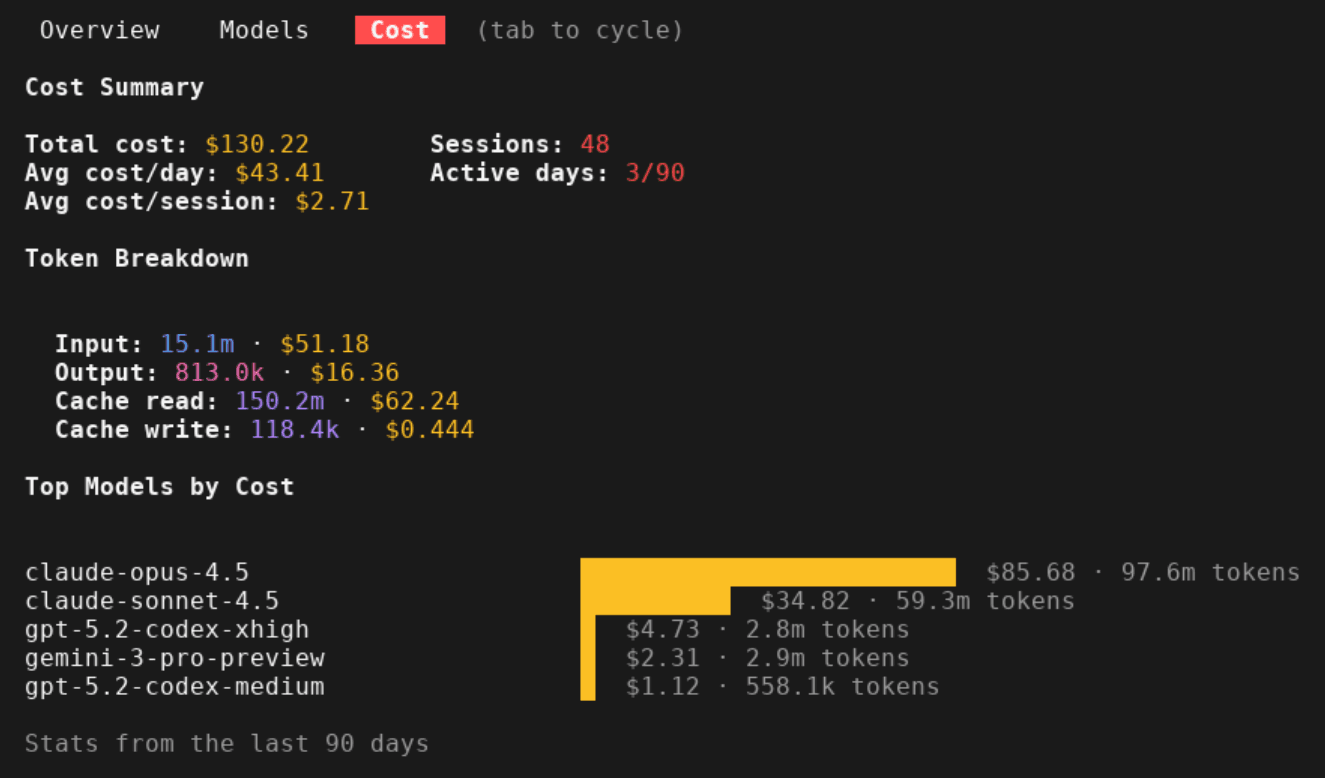
View comprehensive statistics about your Arctic usage with /stats. The dialog has three tabs:
Overview - Activity heatmap, favorite model, total tokens, sessions, streaks, and peak coding hour.
Models - Visual breakdown of token usage per model with costs.
Cost - Detailed cost summary with token breakdown (input/output/cache) and top models by spending.
Date Filtering - Filter stats by time period using the date selector in the top right:
- All time (default)
- Today
- Yesterday
- Last 7 days
- Last 30 days
Use ←/→ or h/l to change the date filter. When filtering by a specific period, the activity heatmap is hidden and streak statistics are omitted since they're not meaningful for filtered views.
Use Tab to cycle between tabs, arrow keys to scroll, and Esc to close.
Customization
Keybindings
Override keybindings in config:
{
  "keybinds": {
    "app_exit": "ctrl+q",
    "model_list": "ctrl+m",
    "session_new": "ctrl+n"
  }
}
Themes
Set a theme name in config and provide a theme file:
{
  "theme": "my-theme"
}
Create ~/.config/arctic/themes/my-theme.json:
{
  "background": "#1a1a1a",
  "foreground": "#e0e0e0",
  "primary": "#00ff00",
  "secondary": "#ff00ff",
  "accent": "#00ffff",
  "error": "#ff0000"
}
Troubleshooting
If the TUI looks wrong:
resetIf keybindings don’t work, check terminal settings and consider remapping in config.